

Environments
Using environments
An environment gives a session access to a machine’s files and processes. The session selects one environment at a time, while the environment remains a resource in the universe. Several sessions can select the same machine; selection does not reserve it or create a private copy.
You can select a starting, sleeping, or offline machine. The selection records where work should run; a tool call then waits for readiness and requests a wake-up where supported. Failed, closing, or closed environments cannot be selected.
This guide starts with a machine that already appears under Environments. Use Bring your own compute to connect one you control, or Incus VMs to configure provider-managed machines. The environment overview explains the available sources and the separate VFS and machine filesystems.
A Contributor can attach an existing environment to a session they can control. Creating environments or changing profiles requires an Operator or Admin account. You also need a session with a working model.
Select a machine for a task
Open Environments, find the machine, and expand Details. Check its source, status, and Environment ID. A display name helps you find it; the ID is the stable value profiles and API calls reference.
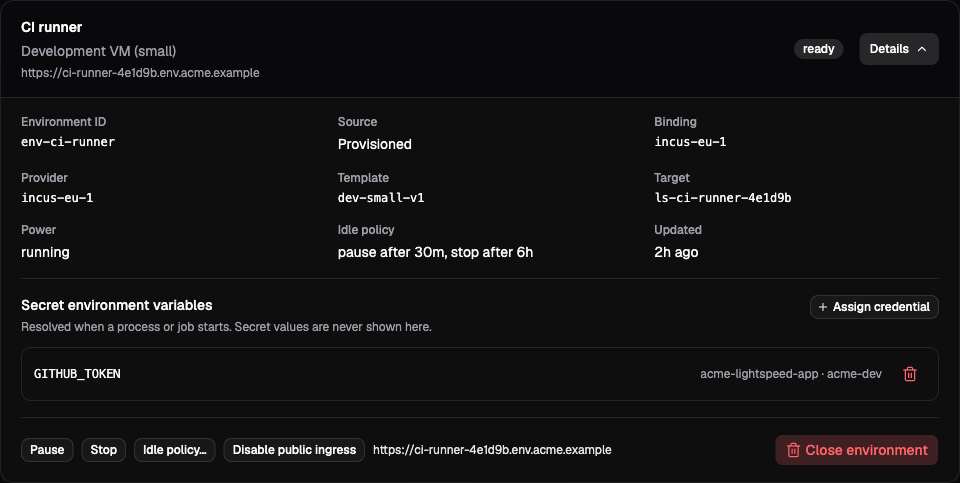
The demo’s CI runner is a provisioned machine. Its Environment ID is the value to select; its status and power state describe the machine’s current state.
Open the session you want to use. With no active or queued runs, choose Session settings, enable Environments, add the machine under Environments, and select it under Active environment. Choose Apply setup.
Each attached environment carries its own Access: Read files, Edit files, Run commands, or Run durable jobs, each including the levels before it. Enabling Environments in the profile or session editor also turns on Prompt loading and Skill discovery; adjust each independently. Existing configurations keep their saved settings; a machine that is not attached cannot be selected.
For this first check, choose Run commands. You can leave Environment selection tools off because you selected the machine yourself. The editor turns this switch on when you add a second attachment so the agent can switch between them; turn it off again if selection should stay under your control.
Send:
Inspect the active environment, then run pwd there and report the workingdirectory. Do not create or change files.Inspect the tool result, including any process error. On the machine from the
bring-your-own-compute walkthrough, the working directory should be the
workspace directory passed to the daemon. A successful reply in chat is
useful, but the actual process output verifies where the command ran.
The environment’s default working directory belongs to the daemon setup. Commands can choose a different working directory. Neither setting confines the process to that directory; it runs with the operating-system permissions of the daemon user.
Choose the access level
A session can attach several environments, each with its own Access. Choose the lowest level that covers the task:
| Access | API value | Adds |
|---|---|---|
| Read files | read |
Reading, listing, search, and glob tools. |
| Edit files | edit |
Write, edit, and patch tools. |
| Run commands | exec |
Starting and continuing processes. |
| Run durable jobs | jobs |
Jobs with persisted records and workflow supervision. |
Each level includes those before it. Command execution includes file editing because a process can write files using the daemon user’s permissions.
{"features":{"environments":{"environments":[{"environmentId":"<environment-id>","default":true,"access":"read"}]}}}Only attached machines are available to the session. Its tools cover the combined access levels of those attachments, while each call checks the active machine’s access. Switching to a read-only attachment therefore leaves command tools visible but refuses their execution there. The daemon must also support the operation, and its operating-system permissions still apply.
Prompt loading and Skill discovery have their own settings. They can read instructions from an attached environment independently of whether it permits commands.
The session’s Environment catalog lists attached machines with their
references, display names, default markers, and access grants. Selection and
lifecycle changes do not replace this directory. Use environment_read for
current selection, status, and working directory; it remains available when
environment selection tools are disabled.
Long environment IDs appear to the model as short env: references in
catalogs, control results, and job handles. These resolve only against the
session’s authorized attachments. Full IDs remain accepted and are still the
identities stored in profiles and public API records. An ambiguous short
reference is rejected; use the full ID in that case. Short references do not
grant additional access. Skill and prompt discovery remains tied to the
selected machine, as described in
Workspaces and skills.
Keep files in the right domain
Suppose the session also links the release-notes VFS workspace at /workspace.
That path belongs to the session’s VFS view. It does not place the files in a
directory named /workspace on the selected machine.
To check VFS content with a command, use vfs_materialize to copy the selected
file or tree to an exact environment destination. Use vfs_capture to save
machine outputs into a writable VFS workspace. Both replace the complete
selected destination by default, preserving siblings. See
VFS transfer for selected paths, content reuse, large files,
and workspace revision conflicts.
After transfer, the copies can diverge. Editing the machine’s copy does not update VFS, and changing the active environment does not move either copy. Use explicit source and destination paths in tasks that cross this boundary.
Reuse a machine through a profile
In Profiles, open the profile and enable Environments. Add the machine under Environments with the access the job needs and mark it as the Default environment. Save the profile and start a new session from it.
New sessions activate that default machine. Applying the profile to an existing session keeps its current selection if the machine is still attached; otherwise it uses the default. At most one attachment can be the default. This is useful for a shared repository checkout, a long-lived service, or several bot conversations working with the same operating-system state. The machine remains available when any one session ends.
Sharing also means sharing file changes, processes, installed tools, and environment-bound credentials. Lightspeed does not coordinate edits between the sessions. Use separate directories for independent tasks and separate environments when they need separate machine state or credential access.
Prefer a persistent registered environment for a profile that names a borrowed machine. An ephemeral registration closes after its disconnect grace period; once closed, that identity cannot return and the profile’s saved selection becomes unavailable.
Create an independent machine
Use Environments → New environment. Select a Template, enter a Display name, configure an idle policy if needed, and choose Provision. The button appears when the universe has a non-deprecated template from an enabled binding. Configure credentials on the environment, then select it in a session or profile.
The environment can be selected while it is provisioning or booting. Tools wait for readiness before dispatching. If provisioning fails, inspect the provider and explicitly create or select a replacement. Session creation and profile application never allocate machines.
Environments remain available when sessions close or are deleted. Manage cleanup through explicit environment operations and idle policies; see Power and cleanup.
Use environments with bots and sub-agents
For a bot whose Main conversation, routed threads, and chat conversations should use one machine, attach the same Default environment in its profile. Resetting a conversation leaves that environment intact for the successor and other sessions using it. Execution polls that name no environment run on the profile’s default attachment; because a live selection is never overridden, a bot conversation that switched to another attached machine can diverge from its polls. Name the environment on the poll when they must match.
A child profile can select Inherit parent environment ("inherit": true)
with its own access level. The
attachment resolves to the parent’s active machine when the child is spawned;
the child shares that machine without copying it and does not close it as its
own resource. If the parent has no active environment, the inherit attachment
is dropped; if the child also attaches the same machine explicitly, the
explicit attachment wins. An inherit attachment in a standalone session or
a plain session configuration is rejected.
The child can also attach a different existing machine. Create any new machine through the Environments page or API first. Its VFS attachments remain independent of these choices. See Sub-agents and federation for the rest of the child-profile boundary.
Grant model-driven selection carefully
Enable Environment selection tools ("selection": true) when the model
should list, activate, and deactivate attached environments itself. Without
that switch, you can still select a machine through the client or profile,
and the model can still read its active environment with environment_read.
The switch does not grant environment provisioning and does not widen the
allowed set: environment_list lists the attachments, and environment_read
and environment_activate accept only attached ids. Their results carry the
attachment’s access line.
The runtime also rejects an ambiguous tool batch that changes selection and uses the selected environment in the same batch. The agent must select first, then perform the file or process operation in a later batch. Existing job handles keep their original environment even after selection changes.
Change or clear the selection
In an idle session’s settings, choose another attached Active environment, or choose No active environment, then Apply setup. This changes the reference; it does not migrate files, terminate existing jobs, or close the machine.
A plain configuration replacement (session/config/put) never activates a
default; it only clears an active environment that the new configuration no
longer lists, so a deliberate deactivation is not undone by a configuration
edit. Applying a profile fills an empty pointer from the profile’s default
attachment and leaves a live, still-listed selection alone. Creating a session
with session/start can name an attached environment or none to suppress
the default.
With the CLI connection settings configured, the equivalent controls are:
target/debug/lightspeed environment listtarget/debug/lightspeed environment read "<environment-id>"target/debug/lightspeed session environment activate --session "<session-id>" "<environment-id>"target/debug/lightspeed session environment deactivate --session "<session-id>"The public methods are environments/list, environments/read,
session/environments/activate, and session/environments/deactivate in the
API reference. Activation
accepts only an environment attached in the session’s configuration.
If the machine is unavailable
| Symptom | What to check |
|---|---|
| New environment is missing | Check that you are an Operator or Admin, then check the universe binding and available, non-deprecated templates. Borrowed machines use registration or attachment instead. |
| Selection succeeds but the first tool waits | A provisioned machine may still be booting or waking. Inspect its status and provider health. |
| A registered machine is offline | Restart or reconnect its daemon using the retained identity. Lightspeed cannot power on that borrowed machine. |
| A visible environment is rejected by the session | Check that it is attached in the session’s configuration, plus the machine’s capabilities and lifecycle status. |
| A file, process, or job call is refused on the active machine | The active attachment’s access does not cover it. The toolset is the union of all attachments; raise that attachment’s access or switch to one that covers the call. |
| A saved profile points to a closed machine | Select a replacement explicitly. The runtime does not silently switch to another environment. |
| A VFS file is missing on the machine | Transfer it explicitly and check which filesystem each tool used. |