

Using Lightspeed
Bots and triggers
A bot gives an agent an ongoing job and a way to receive work. It combines a brief, a session profile, triggers, and a controller that routes admitted events into conversations. A schedule, webhook, or connected chat can supply the next task without someone opening a session and typing it.
The bot’s Main conversation handles work routed to its main session. Other events can create separate threads, for example one conversation per incident or pull request. The bot record remains the same while those conversations have their own histories and lifecycles.
This walkthrough builds release-watch, which reviews the Acorn release
files from Build your first agent. First
create the read-only release-reviewer profile from
Profiles and instructions.
Use an Operator or Admin account to create and configure the bot. Contributors
can invoke an existing bot. The deployment must run the bot controller role
as well as the gateway and session workers;
the local full stack includes it.
Create the bot and send its first event
-
Open Bots → New bot and choose Blank.
-
Under Job, set Name to
Release watchand Id torelease-watch. Give it this Brief:Review Acorn release notes when an event requests a check. Use the changelist and release notes in /workspace. Report unsupported claims, omittedchanges, and uncertainty. Leave the files unchanged. Resolve each eventwith a concise summary of the review outcome. -
Leave Triggers empty for the first test.
-
Under Session profile, choose A shared profile and select
release-reviewer. The wizard otherwise creates a profile for the bot. -
Leave Other bots disabled. Under Guardrails, set a daily run limit such as
20and turn off Can change its own brief and triggers for this fixed setup. Blank bots enable that permission by default. -
Choose Create bot and wait for Main to become ready. The web app asks the new bot to introduce itself when its conversation is ready.
Open Activity → Send a test event. Enter:
| Field | Value |
|---|---|
| Kind | release.candidate |
| Summary | Review the Acorn 1.2 release notes against the saved change list. |
| Data | {"release":"1.2","changes":"/workspace/changes.md","notes":"/workspace/release-notes.md"} |
Choose Send event. Find the numbered event in Activity, then switch to Main to inspect the file reads and review. Check the event outcome in Activity. A test event uses the durable event-admission path even when the bot has no triggers.
Typing into the bot’s Chat composer sends a conversational message. It is useful for discussing the work, but it does not exercise the same numbered event admission as Send a test event.
Work with a shared bot
Bots, their conversations, and their sub-agents are always shared with the universe. Every member can inspect them. Contributors and above can invoke a bot and control work in its conversations; Operators and Admins can configure it, manage triggers, replay events, reset conversations, and close or delete the bot. Current trigger-read responses include webhook ingest paths and chat pairing codes, and every member can call those reads. These bearer values are not restricted to bot managers even when the UI hides management controls.
The bot executes for the universe. Removing its creator’s membership prevents that person’s subsequent Platform requests but does not stop the bot or work already running. See People and roles for membership changes and Agent and tool access for the bot controller’s own limits.
Add a schedule
Open the bot’s Settings → Triggers → Add trigger and choose Schedule.
For a weekday review, enter a name such as weekday-review, choose
On a recurring schedule, and set:
| Field | Value |
|---|---|
| Cron | 0 9 * * 1-5 |
| Timezone | Europe/Zurich |
| Task | Review the current Acorn release files and report any unsupported or missing claims. Do not edit files. |
Add the trigger. The schedule uses the specified timezone; the bot’s daily run budget resets on UTC days. Inspect Activity after a scheduled firing to confirm delivery to the intended conversation.
A one-time schedule uses Fire at and pauses itself after firing. Its saved timestamp is immutable; create another one-time trigger when you need a new time. Timers within a session serve a different purpose: they let active agent work wait, while a schedule produces new bot events.
Receive a webhook
Add a Webhook trigger when another system can POST an event. The trigger row supplies an ingest URL that already identifies the bot and trigger. The default URL token only verification makes that URL a bearer secret: keep it in the sending system’s protected webhook configuration.
For a small generic test, copy the URL and send:
export LIGHTSPEED_BOT_INGEST_URL="<copied trigger ingest URL>"curl --fail-with-body "$LIGHTSPEED_BOT_INGEST_URL" \ -H 'Content-Type: application/json' \ --data-binary '{"kind":"release.candidate","release":"1.2","summary":"Review the saved Acorn release files."}'The generic webhook preserves the whole body as the event’s data. In this
example, a filter can inspect data.release; if you wrap fields in another
data object, their path becomes data.data.release. A top-level kind
supplies the event kind, with webhook as the fallback. The visible event
summary is generated from that kind; the payload’s summary remains in data.
Identical generic webhook bodies deduplicate by their raw bytes. Posting the same bytes again returns the existing event instead of starting fresh work. Use a distinct source occurrence field for a genuinely new occurrence. To deliberately repeat an already stored event, use Activity’s replay action.
The other verification choices are HMAC-SHA256 signature and GitHub
(signed). Create a bearer token on Credentials with Retrievable by
trusted services enabled, then enter its ID in Credential grant ID.
The GitHub preset uses GitHub’s signature format and delivery ID, maps events to kinds such as
issues.opened and pull_request.opened, and can route by issue or pull
request. Configure the sender to use the matching verification scheme.
Poll a system that cannot push events
A poll trigger turns new JSON items into events. In the trigger picker, choose Check a URL or Run a command. Configure the interval, an optional dot path to the items, and a change rule: Unseen id or Increasing field. Intervals are at least one minute; the form starts at five minutes.
The first successful poll establishes a baseline and emits no events. Later
polls compare against that cursor. For example, a URL returning
{"releases":[{"id":"acorn-1.2"}]} can use releases as its items path and
id for unseen-item detection. Add a new ID in the source to verify that the
next poll produces an event.
A URL poll reaches public addresses over HTTPS and does not follow redirects;
hosts on the deployment’s private-network list (LIGHTSPEED_MCP_PRIVATE_NETWORKS)
may also use HTTP. For an authenticated endpoint, enter the ID of a credential
with Retrievable by trusted services enabled. If that credential is bound to
an audience, the audience must cover the poll URL.
An execution poll needs an existing, lasting execution environment and a command that prints JSON to stdout. The UI enables Run a command when the profile attaches a default environment. Enter one argument per line in the command form. Create and configure the machine independently before enabling the trigger. Leaving Environment blank runs the poll on the profile’s default attachment, even if the bot conversation has switched to another machine. Select a specific environment when the poll must always use it.
Changing a poll specification resets its cursor and establishes a new baseline. Ten consecutive poll failures disable the trigger; fix the source or command before enabling it again.
Choose where and when events run
The trigger owns event filtering, routing, batching, and busy-session delivery. Available advanced controls depend on the trigger type; the API exposes the full configuration in the bot contract.
| Choice | Effect |
|---|---|
| Main session | Keeps related work in the bot’s Main conversation. |
| Per-key routing | Computes a key with CEL, a small expression language, and reuses the thread for that key. |
| Per-event routing | Creates a fresh thread for each event. |
| Coalescing | Collects events for the same route until the quiet period, maximum wait, or maximum count is reached. |
| Queue | Starts a later run when the target conversation is busy. This is the default busy-session policy. |
| Steer | Offers the event to the active run at a subsequent model turn. |
| Append as context only | Adds context without starting a run, even when the session is idle. |
A routing key identifies a thread such as pr-42. The bot’s instructions
include this key, so it can send later work to the same thread. For a
self-event, bot_emit with sessionKey uses that thread; omitting it sends
the event to Main. Use the original routing key, rather than its display
label or current session ID. Resetting a thread preserves the key while
starting a new conversation.
CEL filters can inspect event, data, and headers. A false result or
filter error refuses admission; the refused event is not stored as ordinary
bot activity. Test expressions with bots/filters/test before depending on
them. Chat triggers have their own conversation-based routing, described in
Chat channels.
Read outcomes and replay work
Activity shows the per-bot event number, kind, summary, routed session, and outcome. Expand an event for its ID and stored detail. The number identifies the event within this bot; it is not a model turn number.
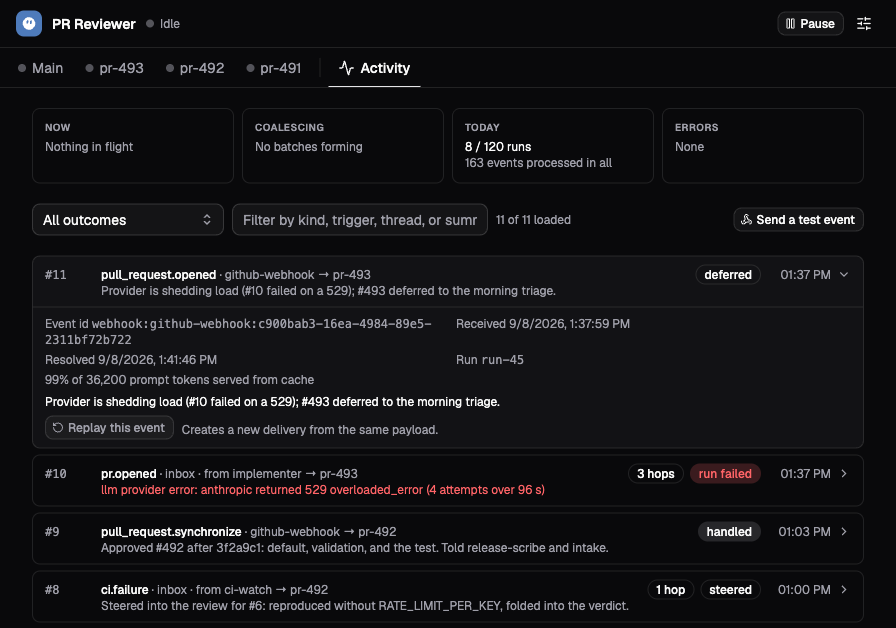
The demo’s PR Reviewer distinguishes a deferred decision from a failed run. Expanding an event reveals its stored outcome and replay action.
The agent can resolve an event as handled, deferred, ignored, or
blocked, with a summary. Those are the agent’s reported decisions. A
deferred outcome does not schedule a retry automatically. An unresolved
event has no explicit resolution, while run_failed records an execution
failure. System dispositions such as steered, appended, or archived
describe what the controller did with delivery.
Replay this event creates a new event and repeats the agent work using the original routing. It can repeat external effects. This action is distinct from deterministic workflow replay used internally to recover state.
Pause, update, reset, or close
Pause stops schedule and poll production and pauses event delivery. Already accepted external or manual events can wait for the bot to resume. Pausing does not cancel an active run. A paired chat stays assigned to its paused bot, but new messages are not buffered for later delivery or routed to another bot.
The daily run limit includes bot runs and their sub-agent descendants. Work held by the limit waits for the next UTC day. Flood protection can also pause an individual trigger, which must be resumed separately.
The named session profile is reapplied to Main when it is idle after the profile changes. Open routed threads keep their setup until closed. Use the conversation menu’s Reset Main… or corresponding thread reset when you want a fresh conversation. Reset closes the old conversation and its open children at an idle boundary and retains the previous history according to retention policy. Main gets a successor as the bot reconciles; a routed thread gets its next conversation when another event needs it.
Under Settings → Danger zone, Close bot is terminal. It cancels work, closes conversations and descendants, archives pending events, removes schedules, and refuses new work while keeping the bot and its history. Deleting additionally removes the bot record, triggers and events, and makes its ID available again. Closed conversation history remains retained and follows the separate session deletion lifecycle.
Profiles and environments remain independent resources. Closing or deleting a bot or any of its sessions leaves its environments intact. Manage machine cleanup through environment operations and idle policies.
If an event does not produce the expected work
| Symptom | What to check |
|---|---|
| A test event is stored but no run starts | Check bot pause, daily budget, target-session state, and append-only delivery. |
| A webhook retry creates no second event | Identical generic payloads deduplicate; GitHub deliveries use their delivery ID. |
| A webhook never appears in Activity | Check the ingest URL, verification, trigger state, and filter. Filter refusals are not stored events. |
| The first poll appears to do nothing | It establishes a baseline. Introduce a new source item to test later delivery. |
| A trigger stopped producing events | Check poll failures, flood protection, and whether a one-time schedule already fired. |
| A successful run has no useful event outcome | Inspect the conversation and brief. The agent needs to resolve admitted events, not only write a final answer. |
To give the bot a messaging account, continue with Chat channels. To delegate parts of its work or coordinate with another bot, read Sub-agents and federation.