

The Lightspeed manual
People and roles
A Platform account identifies a person. A membership gives that account a role in one universe. The same person can be an Admin in Acorn’s engineering universe and a Viewer in its support universe; signing in does not grant access to every universe on the deployment.
The Platform stores these accounts and memberships and checks them when a person makes a request. Core receives an API key, the selected universe, and an actor ID for attribution. It does not maintain a second directory of people or re-evaluate their roles. See the access overview for that boundary.
Choose a universe role
The four roles are cumulative: each includes the permissions of the preceding role. Session visibility is a separate check. An Operator can configure a bot but cannot read another person’s private session simply because they manage the universe’s resources.
| Role | What the person can do |
|---|---|
| Viewer | Read visible sessions, bots, and universe resources. A session they previously created remains visible after a downgrade to Viewer. |
| Contributor | Create sessions with universe defaults or an existing profile; continue sessions, steer or stop work, decide tool approvals, invoke bots, and update workspace contents. |
| Operator | Customize session setup and run options; create workspaces and create or configure profiles, bots, environments, MCP servers, credentials, and channels; manage bot triggers and replay bot events. |
| Admin | Manage universe members, settings, and API keys. Read, control, and share every session, including private sessions; soft-delete closed sessions and set deletion retention. |
Contributors can name a new session and choose its saved profile, but cannot author inline setup, override the chosen setup, create managed sessions, or create or edit profiles. After creation, changing configuration, custom instructions, metadata, or the active environment requires an Operator or Admin. Per-message model and reasoning overrides also require an Operator or Admin. These checks apply to the server, including a Contributor’s own sessions.
Viewers and Contributors can inspect profiles in Form or JSON view and open Session settings for sessions they can read. The form keeps sections expandable and values readable, with editing controls protected and save actions hidden.
Contributors and Operators can start and control runs in any shared session. Sharing a session requires its creator, with at least the Contributor role, or an Admin. Contributors can close only their own unshared sessions; Operators can close their own or shared sessions. Operators can soft-delete shared closed sessions; Admins can close and soft-delete any session in their universe, subject to lifecycle requirements. The private and shared work guide develops those rules with an example.
A Platform admin has a separate deployment-wide role. Platform admins create accounts and universes, manage deployment configuration, and act as Admin in every universe even without a membership there. Giving someone an Admin membership in Acorn does not make them a Platform admin. Only Platform admins can permanently delete soft-deleted session history.
Create an account and add a member
With company sign-in configured, opening Lightspeed starts sign-in automatically by default when you have no active session. A deployment can instead require a click to start sign-in. The login page also offers Sign in with your company account for manual sign-in. Your provider handles internal single sign-on and any external password or MFA prompt. The company grants ordinary application access or Platform admin access. A first admitted sign-in creates the account; an ordinary account has no universe membership until an admin adds it on Members. Your company profile and Platform admin status are refreshed at each company sign-in.
Without company sign-in, use an email address and password. Public signup is disabled. A Platform admin creates the account as follows; the first account comes from Bootstrap the Platform.
- As a Platform admin, open Platform admin → Users → Create user. Enter the person’s
Name, Email, and initial Password. Leave Role as
userunless they need deployment-wide administration;adminhere means Platform admin. - Give the person their initial password through your organization’s protected credential-sharing channel. They can change it under Account → Password; changing it signs out their other browser sessions.
- As an Admin of the target universe, open that universe’s Members page and choose Add member. Select the Account and its Role, then choose Add member.
- Confirm the account appears in the member list with the intended role. The person can now select that universe after signing in.
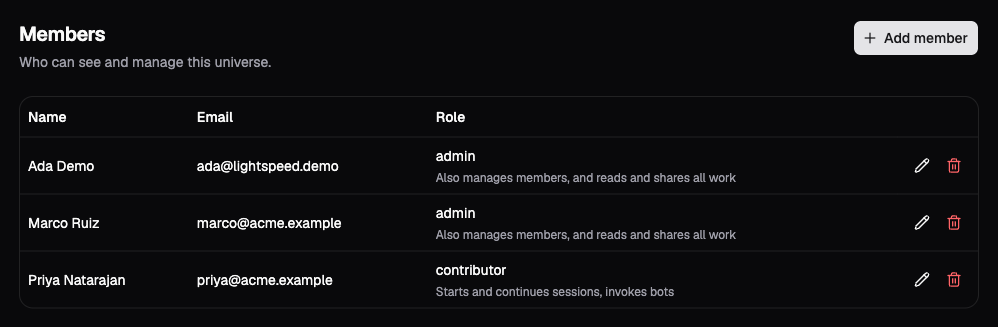
The demo member list shows each person’s role in this universe. Use the row controls to change or remove their membership.
Creating the account alone gives an ordinary user no universe membership. The member picker selects existing accounts; it does not send an invitation.
Company accounts are identified by the provider’s exact issuer and subject, not by email. The provider must supply a unique email. Matching a local account’s email never links the two accounts. Company sign-in preserves local universe memberships; each universe uses the same four roles without needing its own directory group. SCIM and email invitation workflows are deferred.
For provider registration, entitlement claims and emergency-access setup, follow Company sign-in (SSO).
Session expiry and suspension
With company sign-in configured, sessions expire after eight hours by default. Activity does not extend them; company users return to the provider to sign in again. Explicit local emergency admins use Admins when password access is enabled. See Company sign-in for renewal, outages and provider revocation behavior.
Under Platform admin → Users, admins can suspend a person, reinstate them, or sign out all their sessions. Suspension blocks new sign-ins and subsequent requests immediately and persists until an admin lifts it. Reinstatement requires a fresh login; it does not revive old sessions. Users shows identity source, application access and the last successful provider check.
Suspension preserves local memberships and historical records. There is no automatic deactivation for inactivity. Running work and core API keys require separate cancellation or revocation.
Change or remove access
On Members, choose the edit control beside a person, select their new role, and choose Save role. To remove them from the universe, use that row’s remove control and confirm. The server refuses to demote or remove the last Admin membership: add another Admin first. Platform admins’ deployment-wide authority does not replace this membership requirement.
The Platform looks up membership for each universe request. A role change applies to the next request, and removal prevents further access through the Platform. An in-flight read can still complete; removal does not recall content already delivered. Existing sessions and their creator attribution remain.
Work already admitted continues because the runtime executes for the universe, not with the requesting person’s role. If work must stop, cancel its active and queued runs separately. Removing membership also does not revoke an integration’s API key; revoke that credential separately using API keys and service access.