

Using Lightspeed
Sessions and runs
A session holds an agent’s conversation and setup. A run is one attempt to carry out a task in that session: it can contain several model turns and tool calls before the agent finishes, fails, or is canceled. Sending another task starts another run with the conversation that came before it.
This distinction gives you two kinds of control. You can ask for more work after the current task, or change what the agent is doing now. The session retains both the work and its history when you leave the page.
Use a Contributor, Operator or Admin account in the universe for the web procedures below. To control an existing private session, you must be its creator or an Admin; shared sessions can be controlled by Contributors and above. Changing session setup or per-message model and reasoning options requires an Operator or Admin. If you haven’t completed a task yet, start with Build your first agent.
Start and continue a session
Open Sessions → New session, enter a Name, and select an existing Profile or No profile (universe default). Choose Create. The profile is resolved at creation; later profile edits do not change this session. Contributors use these prepared choices without configuration overrides.
Operators and Admins can choose Customize setup… to change the setup for this session without saving those changes back to the profile. After customizing, choose Create session. They can also customize a session that starts without a profile.
Send a task in the composer. For the release editor from the first-agent walkthrough, try:
Read /workspace/changes.md and /workspace/release-notes.md.Check every release-note claim against the change list.Report any mismatch, but leave the files unchanged.When the answer arrives, send a follow-up in the same session. The agent can use the earlier conversation and its linked files. Starting a new session from the same profile gives you a fresh conversation; workspace attachments may still point to the same shared files.
Share a session with the universe
New standalone sessions are private: through the Platform, only their creator and Admins can read them. To share a review with the team, open the session title menu, choose Share with universe…, and confirm with Share. This also shares its sub-agents. Sharing cannot be undone.
Every member can then read the conversation, and Contributors and above can continue runs, steer, cancel work, or decide tool approvals. Sharing requires the creator with at least the Contributor role, or an Admin. Bot conversations are always shared; delegated sessions follow their root’s visibility.
Files written into an attached shared workspace remain visible through that
workspace even while the conversation is private. Direct core keys with the
session method group also have access to private sessions in their universe.
See Private and shared work
for the access model.
Queue, steer, or stop work
Only one run is active in a session at a time. The composer changes its behavior while that run is working:
| Action | Effect |
|---|---|
| Send while idle | Starts a run. |
| Send while a run is active | Queues a separate run after the current work. Queued runs execute in order. |
| Cmd+Enter on macOS, Ctrl+Enter elsewhere | Steers the active run with an additional instruction. |
| Shift+Enter | Adds a newline in the composer. |
| Stop run | Requests cancellation of the active run. |
| Cancel an item in the queued-runs bar | Removes that queued task without stopping the active one. |
Suppose the release editor is checking a long document. Queue “After this, write a short summary” when that is a second task. Steer with “Focus the current review on compatibility claims” when you want to change the review already in progress.
Steering reaches the agent at its next model turn. It does not interrupt a model response or tool call already executing. If the run is waiting for a promise, steering waits with it; it does not wake the run by itself.
Cancellation stops further work and requests cancellation of active model and tool activities. It does not undo effects that have already happened, such as a saved file or a message sent by a tool. Wait for the run to reach its canceled state before treating it as stopped. Other queued runs remain queued and can start afterward, so cancel them separately if you want the session to remain idle.
For environment commands, canceling a tool activity does not guarantee that its remote operating-system process has stopped. Inspect and stop that process explicitly as described in Processes and jobs.
Some tools pause for approval. Review their arguments and choose Approve or Reject for each pending call. The run continues once every pending decision has been made. See Tools and MCP for configuring that policy.
Inspect what happened
The transcript shows messages and tool activity. Each tool row names the operation, its target, and how long it took. Open a row to inspect its Arguments, Result, Error, and any reported Effects. For example, after the agent says it saved a file, inspect the write result and open the file to verify the change.
Images and documents appear as thumbnails and document links beside the message or tool result that supplied them. Click one to open it at full size. The agent can also reference those items inline in its answer.
When a run finishes, its thinking, tool calls, and interim notes fold behind one strip that names the outcome and number of tool calls; the final reply stays visible below it. Click the strip to open the run, or turn off Collapse completed runs in the session title menu to keep runs open. Events delivered to a bot appear as bands headed by their sender and kind.
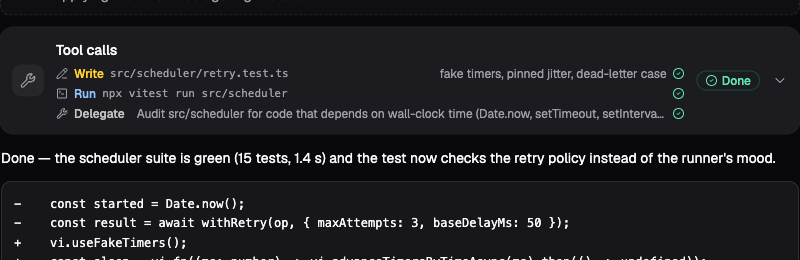
Demo mode: an expanded tool call in “Fix flaky scheduler test.” The result shows what the command found; Arguments shows the submitted request.
Click a finished run’s context and usage figures for a breakdown, or hide them with Show run statistics in the session title menu. Context describes the last model request; cumulative tokens describe the whole run. A missing measurement means it was unavailable.
Long conversations load a recent window first. Scroll upward to load older history. Context compaction can reduce what the model carries into future calls while leaving the retained transcript available to inspect. It does not mean that the agent will reproduce every earlier detail from memory; keep important source material in files it can read again.
Manage long conversations
New sessions use automatic standalone compaction by default. It reduces older conversation at safe boundaries between model turns, including during a run. When input capacity is known, the default trigger is 80% of that capacity; otherwise Lightspeed can recover when the provider reports a full context window. Recovery resumes the same run with completed tool results retained. It can still fail when the protected input is too large or its bounded attempts cannot make enough room.
As an Operator or Admin, open Customize run controls → Context compaction in the profile or idle session’s model setup. Engine default and Engine managed standalone enable standalone compaction; Provider triggered uses supported OpenAI Responses or Anthropic Messages generation compaction. Disabled turns off automatic compaction and recovery. Input limit tokens overrides usable input capacity; leave it blank to use reported capacity or error-driven recovery. Session settings show the effective mode, threshold, queued or pending state, and recovery attempts.
Older sessions whose saved setup omitted compaction keep their historical
disabled behavior until configuration is replaced. Applying setup with
Engine default adopts the current default. Explicit Disabled remains
disabled. An API caller can request one session/context/compact operation
in any mode; active work queues it until a safe boundary.
Compaction can summarize away details, so keep important source material in workspaces. It preserves retained history and original blobs. The context guide explains provider behavior and protected input. For a specific rejected entry, use context repair instead.
Dictate a message
With a speech-to-text default configured, choose the composer’s microphone (Dictate message) and allow microphone access. Choose Stop recording to transcribe and insert the text into your draft. Review or edit it, then send normally. Recording stops automatically after ten minutes; dictation audio is limited to 25 MiB.
You can keep editing while transcription runs. Recording or stopping alone does not start a run. If you choose Send or press Enter while recording or transcribing, the composer waits for the transcript and then submits the message. During an active run, that action queues the next run; choosing steering instead sends it to the active run when ready.
Cancel dictation or Esc discards the recording or pending transcription and clears any send waiting for it. Failures preserve your existing draft; use Retry transcription when available. The microphone control explains unavailable recording or model configuration. Browsers require microphone permission and a secure origin, such as HTTPS or localhost.
Find and change a session
Open Filter sessions in the session list. Under Include, select
Closed sessions, Sub-agent sessions, or Managed sessions to show
those conversations. Metadata filters accept key=value pairs, and
Metadata keys to show adds useful values to the list.
Metadata is a descriptive map, for example project=acorn and
purpose=release-review. It does not grant access or instruct the model.
Open Session settings to inspect metadata, custom instructions, model
configuration, and attached resources. Viewers and Contributors see a read-only
form: sections still expand, but values cannot be changed and Apply setup
is hidden.
Operators and Admins can edit the setup and choose Apply setup. Changes to the agent’s working setup require an open session with no active or queued runs. The composer’s per-message model and reasoning choices, including saving a model choice as the session default, also require an Operator or Admin.
A session keeps its configured provider identity and API kind for its entire lifetime, including before its first run. You can switch model names within that route, such as between OpenAI models, and switch back later. Changing provider or API kind requires a new session because conversation context may contain provider-native opaque data. Retained reasoning or native compaction state can also prevent an incompatible model change within that route. An aggregator such as OpenRouter counts as one configured provider; the underlying vendor name alone does not determine compatibility.
Existing ordinary sessions keep the setup they received at creation. Editing their source profile does not update them automatically. See Profiles and instructions for explicit profile application and the different behavior of bot conversations.
To start a fresh conversation with the same setup, create another session from the same profile.
Continue from the CLI
For saved connections, connect dev, terminal-only provider setup and universe
switching, see Use Lightspeed from the terminal.
The CLI can open the same session as the web app. On Linux x86_64, download the prebuilt CLI from the release matching your server. You can also build it from the repository:
cargo build --locked -p cliThe examples use lightspeed on your executable path. Use ./lightspeed
for a release binary in the current directory, or target/debug/lightspeed
for the source build above.
For the authenticated development launcher stack from the quickstart, use its runtime gateway and a universe API key created by an Admin. See API keys and service access for creating and revoking keys. A universe key already selects its universe:
export LIGHTSPEED_API_URL=http://127.0.0.1:18080/rpcexport LIGHTSPEED_API_KEY="<universe API key>"unset LIGHTSPEED_UNIVERSElightspeed chat --session "<session-id>"Copy Session ID from the web app’s session title menu.
For a remote installation, use the gateway address and authentication supplied
by the operator. A deployment key needs LIGHTSPEED_UNIVERSE set to the core
universe UUID, distinct from the readable slug in the browser URL. Local
single mode accepts neither API keys nor universe headers.
Without model flags, lightspeed chat uses the deployment default for a new
session and the stored model when opening an existing session. To choose a
route for a new session, supply --provider, --api-kind, and --model
together. When reopening a session, these flags may select another model
only within that session’s existing provider and API kind.
Inside the terminal interface, /model selects a model for subsequent runs;
/provider shows discovery but cannot change the session’s provider. Switching
sessions with /sessions discards the previous session’s model override and
uses the selected session’s stored model. /refresh retries failed transcript
reads; incomplete transcripts are reported as errors, including in one-shot
and JSON output.
Inside the terminal interface, /help lists commands. /steer sends an
instruction to the active run, and /approve or /reject decides a pending
approval by ID. /interrupt cancels the newest queued run first, or the active
run when no queued run exists. /quit exits the interface and leaves the
session available to reopen.
At startup, the TUI header shows the full session ID, universe and key scope,
then the runtime endpoint and useful slash commands. Model and effort remain
in the footer; lightspeed --version shows the build version.
The TUI shows live tool activity as calls run and finish, including individual
running, done, failed and cancelled states. An animated thinking/working
indicator stays below the latest tool activity, just above the composer.
Live and completed tools use the same compact layout; --show-tool-details
adds arguments and results. Execution-group numbers are not displayed. Session refreshes preserve
observed tool activity while the model continues; completed run details provide
the final transcript. Following a run also leaves chat commands available, and
opening an already-active session resumes live updates.
Run statistics (timing, token/cache usage, call counts and context details)
are hidden by default. Start with lightspeed chat --show-stats to show
them, or use /stats inside chat to toggle them. /stats on and
/stats off set visibility explicitly, including statistics already in the
transcript. This preference lasts for the current chat process. The flag also
applies to one-shot text output; JSON output retains all run data.
Applications can use session/runs/start, session/runs/read,
session/runs/steer, and session/runs/cancel from the
API reference. Starting a run
acknowledges admission; follow its state and events to obtain the final result.
Use a stable submissionId when retrying the same submission.
Close and retain a session
Leaving a browser tab or quitting the CLI has no effect on session lifecycle. Close session is a separate, permanent action: a closed session cannot accept more work or be reopened. Its retained history is still inspectable. Force close session also cancels outstanding work, including queued runs.
Deleting a closed session in Platform soft-deletes it: it disappears from ordinary session views for everyone, including Admins, while its history remains stored. Also delete forks and delegated children includes its retention descendants, which must also be closed; configuration-only clones are separate. Without that option, the session must have no retention descendants. Closing and deletion have different role requirements.
Admins can set Delete after close (days) to automatically soft-delete a closed session tree; a blank value keeps it until manual deletion. The root owns this policy for its retention tree, and deletion waits until all descendants are closed. This policy never permanently removes stored history.
Within Platform, only Platform admins can permanently delete retained session history. In the delete dialog, select Also permanently delete retained history to soft-delete and then purge. For already deleted sessions, open Platform admin → Universes → Deleted sessions, select sessions and choose Purge selected…, or use Purge all…, then confirm removal of their deleted history trees. There is no automatic purge or restore action. Permanent deletion through Platform is recorded in the audit log.
Direct runtime clients use session/delete, which permanently deletes by
default; pass softDelete: true to retain hidden history. Similarly,
lightspeed session delete deletes permanently unless --soft-delete is set.
Both modes require closed sessions and use cascade for retention descendants.
Platform always requests soft deletion before its separate admin purge step;
automatic retention also continues to soft-delete only.
Bot and channel conversations have a lifecycle controller. Their session inspector identifies what manages them; use that controller’s reset or close actions. If you enable direct input in a managed-session inspector, you bypass the controller’s normal event admission, routing, and delivery policies. Use the bot conversation or connected chat for normal work.
If a session behaves unexpectedly
| Symptom | What to check |
|---|---|
| A message is waiting while the agent works | It may be a queued run. Use steering for an instruction intended for the current task. |
| Steering has no immediate visible effect | The current model call or tool batch must finish before the next model turn can consume it. |
| Work starts again after stopping | Check for other queued runs. Stopping one run leaves those tasks in place. |
| Setup changes are refused | Confirm you have an Operator or Admin role. Wait for active work to finish and drain or cancel queued runs. Reload settings if another editor changed them. |
| A finished child or closed conversation is missing | Under Filter sessions → Include, select Closed sessions and Sub-agent sessions, or follow the child link from the parent transcript. |
| The agent lost a detail from much earlier | Inspect the retained history and restate the needed fact or point it to the source file. The current model context can be smaller than the transcript. |