

Using Lightspeed
Workspaces and skills
A VFS workspace holds persistent files that agents and people can read and
edit. A session attaches the workspace at a path such as /workspace, making
the files available without starting a machine.
The same files can also supply instructions and reusable skills. Prompt files provide instructions that are loaded for the session. Skills describe procedures the agent can discover and read when a task calls for them. This lets a project keep its source material and working conventions together.
This guide extends the release-notes workspace from
Build your first agent. Contributors can
create and edit workspaces. Creating the profiles in this guide requires an
Operator or Admin account.
Attach files to a session
Create or select a workspace under Workspaces. New file accepts a path relative to that workspace, and creates directories in the path as needed. Open a file, edit its contents, and choose Save.
To bring existing files into the workspace, open Workspace actions or a folder’s actions menu and choose Upload files or Upload folder. You can also drop files and folders onto the workspace or a destination folder. An upload supports up to 32 MiB of file content and 10,000 file/directory entries. This is a one-time copy; later local edits are not synchronized.
Uploads with no conflicts publish directly. If files already exist, review the collisions and choose whether to replace them or skip them and upload the remaining items. A file’s Upload replacement… action targets that file. Publication checks the workspace revision, so concurrent edits require retrying against the latest tree rather than silently overwriting them.
The same menus provide New folder and Rename… for files and folders. Choose Download for one file or Download as ZIP for a folder or the whole workspace. Uploaded binary files can be previewed where supported and downloaded without converting them to text.
In a profile’s Virtual File System: Files, Instructions, Skills section, enabling VFS turns on Prompt loading and Skill discovery. Choose Add workspace under Workspace attachments and configure its path and access. You can adjust the two discovery switches independently; existing profiles keep their saved settings.
| Setting | Meaning |
|---|---|
| Workspace | Selects the live workspace to attach. |
| Session path | The absolute path where this agent sees the attached files. |
| Access → Read only | Lets the agent inspect the attached files. |
| Access → Read and write | Also lets the agent write, edit, and patch files under this path. |
To edit release-notes, attach it at /workspace with Read and write
access. Give a reviewer Read only. Lightspeed supplies the corresponding
file tools and checks access at the target path, so another writable
attachment does not let the reviewer edit this one. Attachment paths cannot
overlap, and prompt or skill roots must fall inside an attachment.
A profile attaching the same workspace into several sessions shares its live files. A change made by one session becomes visible to another on a subsequent file operation. JSON and API configurations can instead attach an immutable snapshot with read-only access. For tasks that must produce independent artifacts, create separate workspaces or use different output paths deliberately.
Share an immutable file in an answer
After writing a deliverable, ask the agent to obtain a reference with
vfs_reference and include the returned link in its answer. For example:
Save the finished notes to /workspace/release-notes.md. Use vfs_referencefor that file, then include the returned file link in your final answer.The tool records an attachment to that exact file version without reading
its contents or changing it. Ordinary reads, writes, edits, and transfers do
not create these file attachments automatically. A returned file: handle
can be used as [Release notes](file:HANDLE); use the actual handle from the
tool. For an image,  displays it inline. Image syntax
for another file type falls back to a file link.
The link keeps opening the referenced bytes after the workspace file is renamed, overwritten, deleted, or detached. The blob viewer can also link to the source workspace path; that navigation opens the current path, which may have changed since the attachment was created. A file reference to an image does not itself load the image into model context.
For an output on an execution environment, first use vfs_capture, then
reference the captured file. The reference tool can also use a returned
snapshot reference and a path inside it if workspace publication encountered
a revision conflict. See VFS transfer.
To pass an attachment from a sub-agent to its parent, the child must cite it in its successful final answer. Simply creating it is not enough. See Sub-agents and federation.
Add project instructions
In Workspaces → Release notes → New file, enter
.lightspeed/prompts/instructions.md. Create it, enter this text, and save:
# Acorn release documentation
The change list in /workspace/changes.md is the source for release claims.Use "Acorn 1.2" as the release name. Preserve uncertainty in the source:an absent compatibility statement is not evidence of compatibility.
Open the release-editor profile and check that Prompt loading is enabled
under Virtual File System. Its default roots are .agents/prompts and
.lightspeed/prompts beneath each workspace attachment. Save, then create a
new session or apply the updated setup to an existing idle session.
Lightspeed loads all .md and .txt files directly inside each configured
prompt root in alphabetical (case-sensitive filename) order, without recursion.
Numeric prefixes such as 010- and 020- are optional ordering aids.
instructions.md is an ordinary filename with no special priority.
For example, this optional file adds a second instruction source:
.lightspeed/prompts/010-style.mdUse it for a short convention such as “Use sentence case for headings.” If your project keeps instructions elsewhere, choose Customize roots under Prompt loading. Comma-separated VFS prompt roots replace the defaults; clearing that field restores them. Switch off Prompt loading to remove the sourced instructions when the session next refreshes its setup.
Sourced files combine with the profile’s custom text. Keep them consistent; their ordering does not resolve conflicting instructions. See Profiles and instructions for how those sources fit together.
Add a skill
A skill has its own directory directly inside a configured skill root. Create
.lightspeed/skills/release-review/SKILL.md in the same workspace, then save:
---name: release-reviewdescription: Use when checking release notes against a supplied change list.---
# Review release notes
Read /workspace/changes.md and /workspace/release-notes.md.
For each claim in the release notes, find the supporting change-list entry.Report unsupported claims, missing changes, and ambiguous source material.Include enough quoted file text to make each discrepancy easy to locate.
Finish with a short assessment and the changes that need human review.Ask before editing either file.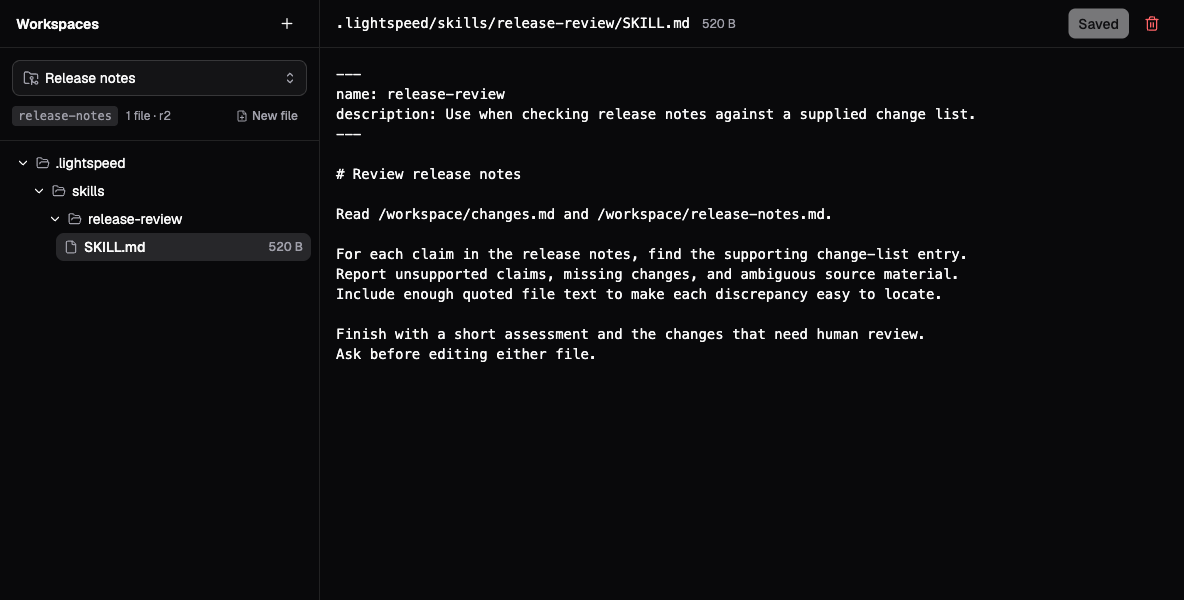
The walkthrough’s skill file, entered in demo mode. The file tree shows its
workspace-relative path; the instructions use session paths under /workspace.
Check that Skill discovery is enabled under Virtual File System.
The default roots include .lightspeed/skills, so no override is needed for
this example. Keep the workspace attached, save the profile, and start a
session. The resulting workspace layout is:
release-notes/├── changes.md├── release-notes.md└── .lightspeed/ ├── prompts/ │ ├── 010-style.md # Optional ordering prefix │ └── instructions.md └── skills/ └── release-review/ └── SKILL.mdThe filename must be SKILL.md. Both name and description are required
frontmatter fields. Multiline YAML descriptions are supported. Discovery checks
skill directories immediately inside each root, so place release-review
directly under .lightspeed/skills as shown.
Now send:
Use the release-review skill to check the Acorn release notes.Read the skill file before reviewing. Report findings without editing files.Inspect the transcript for a read of the skill and both input files. The catalog initially supplies names, descriptions, and paths; it does not inject every skill body into the conversation. Reading the relevant procedure keeps unused skills out of the working context.
Select a skill explicitly
With the CLI connection settings configured, list the discovered skills:
lightspeed session skill list --session "<session-id>"Copy the returned skill ID. It identifies a catalog entry and may differ from the skill’s name. Submit a request to read and use it:
lightspeed session skill use --session "<session-id>" "<skill-id>"This starts an ordinary run when idle, or steers the current run. In the
chat TUI, /skills lists entries, /skill opens the picker, and
/skill <skill-id> selects an entry directly, including during an active run.
API clients can use session/skills/list to obtain the same locations and submit
ordinary input through session/runs/start or session/runs/steer. See the
API reference.
Selecting a skill asks the agent to read and use it for the task. Its contents can later be compacted like other conversation history, and the agent can reread the file when needed. Use prompt loading for guidance that should remain in the session’s instructions.
Configure VFS discovery explicitly
The form manages the same configuration available through JSON and the API.
An empty features.vfs.skills block enables .agents/skills and
.lightspeed/skills beneath each workspace attachment. For example:
{ "features": { "vfs": { "workspaces": [ { "path": "/workspace", "workspaceId": "release-notes", "access": "read" } ], "skills": {} } }}Omit features.vfs.skills to disable discovery. To search elsewhere, provide
a nonempty list of absolute roots inside attachments, such as
"skills": { "roots": ["/workspace/team-skills"] }. In the form, use
Skill discovery → Customize roots → VFS skill roots; clearing the field
restores defaults. The features.vfs.prompts block follows the same pattern.
The wire access values are read and edit. A workspace entry can use
snapshotRef instead of workspaceId to attach a fixed version; snapshots
require read access. See the
API reference for the full
configuration.
Discover skills installed on a machine
In the profile editor, new-session form, or session settings, attach the machine under Environments and set that attachment’s Working directory, then enable Skill discovery or Prompt loading independently. Any attachment grants the environment read tools the agent needs to read discovered skill documents. The working directory belongs to the attachment and is shared by file tools, commands, jobs, and discovery; empty uses the machine’s default.
{ "features": { "environments": { "environments": [ { "environmentId": "<environment-id>", "default": true, "access": "read", "workingDirectory": "/workspace/project" } ], "skills": {}, "prompts": { "roots": ["./team-prompts"] } } }}By default, Lightspeed searches .agents/skills and .lightspeed/skills, or
.agents/prompts and .lightspeed/prompts, beneath the working directory and
execution user’s home. It does not walk parent directories. To use a different
location, including a .claude or .codex directory, choose Customize roots.
Overrides replace all defaults, including home, and may be absolute or relative
to the active attachment’s working directory. Clearing the field restores
defaults.
Environment prompt files use the same direct .md and .txt convention as
VFS prompts. Skills appear in a separate environment section in the catalog
and CLI picker, because the agent reads them from the machine. Copies in both
VFS and the environment remain separate entries. Running a script supplied
by an environment skill also requires process access to that machine.
Discovery refreshes when the session is idle with no queued runs, including preparation for new work. Installing a skill during a run does not refresh the catalog during that run. Switching environments removes the old machine’s catalog; the new machine is scanned at the next eligible refresh.
The machine must be online and support filesystem scanning. Discovery does not wake it. If a scan fails or is incomplete, Lightspeed can retain the last successful catalog for the same environment and discovery scope, marking it stale with a warning in the API. The model’s menu continues to list discovered paths; reading a skill still accesses the machine’s current file.
Fallback is discarded when the environment or configured scope changes, including roots, working directory, or access. Removing the attachment also removes its advertised paths. Without a matching prior observation, the source is unavailable. Check the machine’s state, roots, and permissions, then retry discovery at the next eligible refresh. A stale listing does not prove that a file is currently reachable.
Update files and handle concurrent edits
Live workspace operations resolve the current workspace revision. Writes check that revision before committing a replacement. If another writer has changed it, the write can fail with a conflict; Lightspeed does not merge competing edits automatically. Reload the current file, compare the changes, and make the intended edit against the new revision.
Prompt sources and skill catalogs refresh while idle, before the next task starts. File reads use the current live contents even when the catalog has not changed, so a skill body can be updated independently of its description. Use a snapshot when the task must keep reading a fixed version.
If files or instructions are missing
| Symptom | What to check |
|---|---|
| A file exists in the browser but the agent cannot find it | Combine its workspace-relative path with the attachment’s session path, and check the current session setup. |
| A write fails despite edit tools | Check attachment access and whether the target is a snapshot. Read-only attachments remain read-only. |
| Prompt files have no effect | Enable Prompt loading, check the default or overridden roots inside attachments, use direct .md or .txt files, and start the next run after the update. |
| A skill is absent from the catalog | Enable Skill discovery and check the default or overridden root, direct child directory, exact SKILL.md name, and required frontmatter. |
| A discovered skill has not affected the answer | Inspect whether the agent read it, or select it with /skill or session skill use. Discovery alone loads only its catalog entry. |
| Saving reports a revision conflict | Reload and reconcile with the intervening edit; do not assume the save was merged. |
Copy files to or from a machine
Attaching a VFS workspace does not put it on an execution environment. With a
workspace attached and an environment attached with edit or higher access, use
vfs_materialize for a file, subtree or whole workspace; with an edit
workspace attachment and any environment attachment, use vfs_capture to save
machine outputs into that editable workspace. These tools handle binary files and executable scripts
without passing their bytes through the model. See
VFS transfer for replacement and retry behavior.